

If you're a team owner, you can remove someone from your team.
Next to the team name, select More team options
 > Manage team
 .
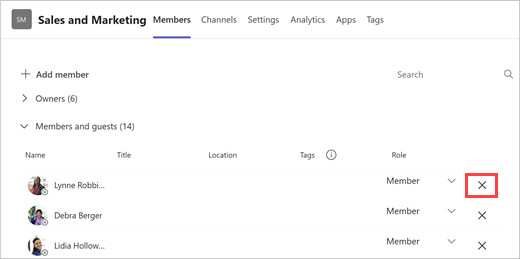
.Select Members tab, then locate the team member under Members and guests drop down.
Tip
You can also search for a member by name in the Search members box.
Select Remove
 on the far right of the name of the person you'd like to remove.
To remove another team owner, first change their role from owner to member, then remove them.
After you remove someone from a team, you can always add them back to the team later on by selecting More team options
> Add member .
.
Note
Team owners can remove members from a team, but only an admin can remove someone from the organization.
 .
. > Manage members.