
Meet with members of a Microsoft Teams channel instantly or by scheduling a channel meeting. When you have a meeting in a channel, everyone in the team can see it as a post in the channel and join from there.
Schedule a channel meeting
Select Teams
 in Teams.
Select the channel you want to schedule a meeting in.
Select the dropdown arrow next to Meet now
 .
.- In the Posts layout, select the dropdown arrow next to Meet now
 .
.
- In the Posts layout, select the dropdown arrow next to Meet now
Select Schedule a meeting
 .
.Add meeting details.
- To send attendees personal invites, manually add them in the Add required attendees
 field or turn on the Send personal invites toggle.
- To send attendees personal invites, manually add them in the Add required attendees
Select Send.
Note
Scheduling channel meetings isn’t supported in private channels.
Meet instantly in a channel
Select Teams
in Teams.Select the channel you want to start an instant meeting in.
Select Meet now
.- In the Posts layout, select Meet now
.
- In the Posts layout, select Meet now
Select Join now.
Invite people to join the meeting.
Members of the channel can see and join the meeting in the channel Posts or Conversations feed.
Chat in a channel meeting
- Select Chat
 in the meeting controls.
 - Type a message in the compose box and press Enter or select Send.
All channel meeting conversations appear as their own threads in the channel’s Posts or Conversations feed.
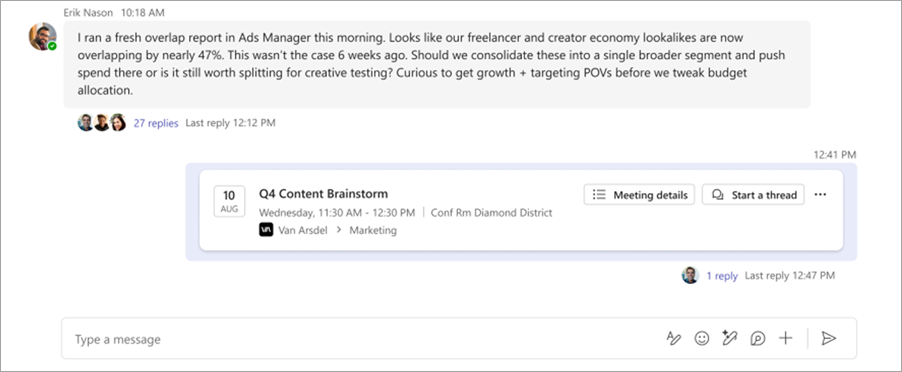
Participate in the channel meeting conversation by replying to messages in the channel meeting post or start a new conversation by selecting Start a thread
 .
.