Watch Take mail merge to the next level - A free training video.
Note
This content applies to the desktop versions of Word for Windows and Mac (including Word with a Microsoft 365 subscription). Some features may not be available in Word for the web or mobile apps.
You can use mail merge to create and send bulk mail and to create envelopes and labels. Your mailing list is the data source for mail merge. Word pulls information from your mailing list and inserts it into your mail merge document.
Sort recipient list
There are many ways to sort your recipient list. The steps below provide you with just one example of what can be done to sort records.
On the Mailings tab, select Edit Recipient List.
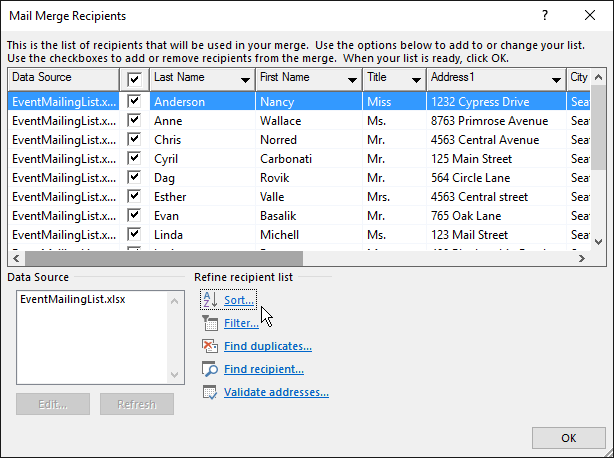
In the Mail Merge Recipients dialog box, select Sort.
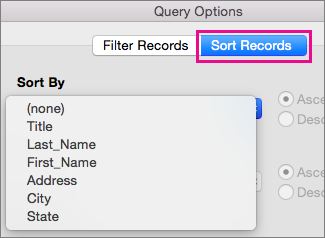
Select the Sort Records box down arrow, choose the column name in your Excel mailing list that you want to sort by, and then choose Ascending or Descending as the sort order.
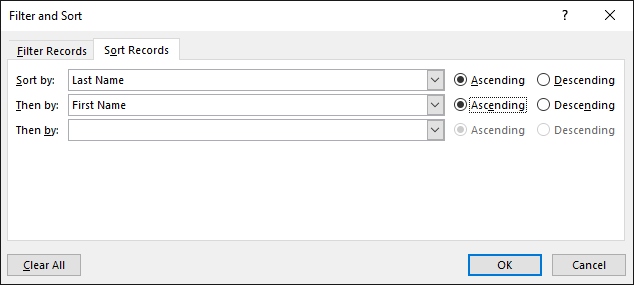
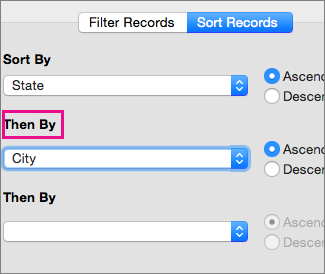
(Optional) Select the Then by box down arrow, choose the name of a second column that you want to sort by, and then choose Ascending or Descending as the sort order.
(Optional) Repeat step 2 if you need to add another column name to sort by.
Choose OK and see sort results.
Note
The recipient list now is in ascending alphabetical order.
See also
Watch Take mail merge to the next level - A free training video.