You can customize access to your PowerPoint presentation in several ways so it’s shared safely, securely, and only with the people you choose.
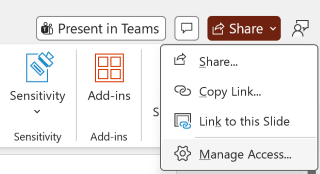
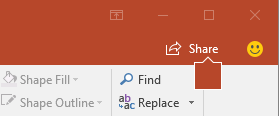
In the top right corner, select Share and then select Share again from the drop-down menu.
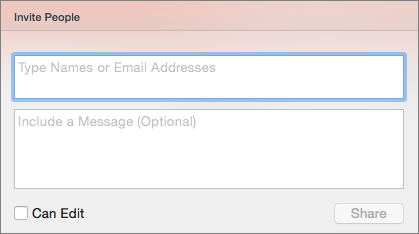
Enter the names or email addresses you want to share with, and add an optional message.
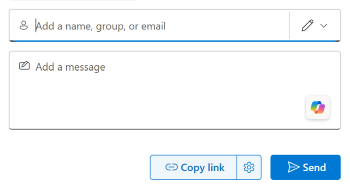
Review or update the permission you want to give by selecting the permission icon next to the Add a name, group, or email field and choosing from the dropdown list of options, such as Can edit, Can view and Can't download.
Select Send.
You can create a shareable link by selecting Share > Copy Link. This will automatically copy the link to your clipboard with the default sharing settings and you can paste it in an email, social media post, or even a Teams message. If you want to specify who can access the link, go to Settings.

If you want to stop sharing, then select Share > Manage Access > Stop sharing. You can also see who the file has already been shared with, and manage their access. For information on collaborating with others on a document, see Work together on PowerPoint presentations.
Share a PDF or copy of a presentation by email
If you don't want to share a document with others to collaborate on, simply use a traditional email attachment to send the presentation to others.
This feature is only available if you have a Microsoft 365 subscription. If you are a Microsoft 365 subscriber, make sure you have the latest version of Office.
- To send your presentation as a copy or a PDF, select Share and then Share again from the drop-down menu.
- In the Share dialog box, select ... for more options, then select Send a copy.
- Select either PowerPoint presentation or PDF. PowerPoint will open the email application and attach the file to a new message.
- Enter the recipients details and a short message, and select Send.
Share a copy of your presentation from OneDrive
This feature is only available if you have a Microsoft 365 subscription. If you are a Microsoft 365 subscriber, make sure you have the latest version of Office.
- To send your presentation from OneDrive, select Share.
- In the Share dialog box, enter a Name, group, or email, set permissions, enter a message if you'd like, and then select Send.