

When you want to apply a template to a new or existing PowerPoint presentation, start with a blank presentation.
If you need help knowing where to put a template file so you can apply it as described in this article, go to Where template files belong.
Select a template
- Select File > New.
- Under New, navigate to a personal template, search for a template, or choose a featured template or theme from the gallery.
- Select the template to preview it, and then select Create. The template is applied to the blank presentation.
- If you don't have existing slides to import, simply begin creating slides in your new file.
Apply the template to existing slides
If you have existing slides, import them into the new file you created:
Open the file that contains the existing slides.
Select the thumbnail pane and then select the slides you want:
To select this Do this All slides Press Ctrl+A A subset of the slides Press and hold Ctrl while you select the individual slides you want to select Copy the selected slides (Ctrl+C).
Switch to the new file, right-click the thumbnail pane, and under Paste Options select Use Destination Theme:
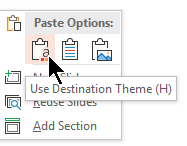
All the copied slides are inserted in the new presentation.
Where template files belong
To use a template easily, store a personal template that you created in a standard folder location.
When you store the template in this folder, it appears in PowerPoint from File > New in the tab next to the Featured tab.
Personal templates: see or change the default location
- In PowerPoint, select File > Options > Save.
- Under Save presentations, check the box named Default personal templates location.
- There might already be a folder location specified in this box. If a folder is specified, continue using it. Place your personal template in this folder.
- If no folder is specified in that box, use File Explorer to create the default personal template folder:
C:\Users\YourUserName\Documents\Custom Office Templates
YourUserName isn't a literal folder name. Use the above folder path name in the Default personal templates location box but replace YourUserName with whatever your username is on this computer.

Why it's best to start fresh when applying a template
Even if you have existing slides, we recommend that you apply a template to it by starting fresh with the template and then importing the existing slides into the new, fresh template. This process helps to ensure that everything in your presentation (especially things you haven't created yet) adopts the look and formatting prescribed by the template.
Related articles
Create and save a PowerPoint template