
To make it easier to create and edit formulas and to minimize typing and syntax errors, use Formula AutoComplete. After you type an = (equal sign) and beginning letters or a display trigger, Microsoft Excel displays a dynamic drop-down list of valid functions, names, and text strings that match the letters or trigger. You can insert an item from the drop-down list into the formula by using an insert trigger.
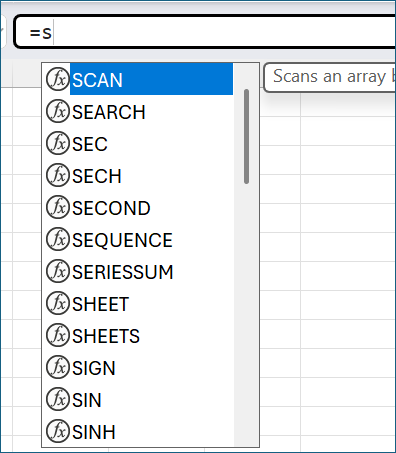
1. Type the = (equal sign) and beginning letters or a display trigger to start Formula AutoComplete.
2. As you type, Excel displays a scrollable list of valid items with the closest match highlighted.
3. Icons represent the type of entry, such as a function or table reference.
4. Detailed ScreenTips help you make the best choice.
Control the drop-down list by using display triggers
The following table summarizes how to dynamically control the display of items in the Formula AutoComplete drop-down list.
| To display | Type this |
|---|---|
| Excel and user-defined function names | A letter or beginning letters anywhere a function can be entered. Example: Su |
| Function arguments | (No display trigger). Type the argument, such as a number or cell reference, or use a display trigger, such as beginning letters or an [ (opening bracket). Example: SUM(5, A2, [ For each subsequent argument, type a comma and then the argument or another display trigger. Note: The following functions have arguments with enumerated constants that automatically display in the drop-down list: CELL, FV, HLOOKUP, MATCH, PMT, PV, RANK, SUBTOTAL, and VLOOKUP. |
| Defined names and table names | A letter or beginning letters where that name can be entered. Example: Ann |
| Table column specifiers and special item specifiers ([#All], [#Data], [#Headers], [#Totals], [#ThisRow]) | One or more of the following:
Note: If the cell is in a table, the table name is optional. For example, the following formulas would be the same: =[Sales]/[Costs] =AnnualSummary[Sales]/AnnualSummary[Costs] |
| Connection names in Cube functions | " (opening quotation mark) immediately after the opening parenthesis of a Cube function name. Example: CUBEMEMBER(" Note: Only OLAP connections stored in the current workbook are listed. |
| Multidimensional expressions (MDX) text strings in Cube functions | One or more of the following:
|
Note
- At any time that you are using Formula AutoComplete, you can type what you want to finish the formula.
- You can use Formula AutoComplete in the middle of an existing nested function or formula. The text immediately before the insertion point is used to display values in the drop-down list, and all of the text after the insertion point remains unchanged.
- Defined names that you create for enumerated constants, such as the ones used in the SUBTOTAL function, and Cube function connections don't display in the AutoComplete drop-down list, but you can still type them.
Use keys to navigate the Formula AutoComplete list
The following table summarizes the keys that you can use to navigate the Formula AutoComplete list.
| To | Press |
|---|---|
| Move the insertion point one character to the left. | LEFT ARROW |
| Move the insertion point one character to the right. | RIGHT ARROW |
| Move the selection up one item. | UP ARROW |
| Move the selection down one item. | DOWN ARROW |
| Select the last item. | END |
| Select the first item. | HOME |
| Move down one page and select a new item. | PAGE DOWN |
| Move up one page and select a new item. | PAGE UP |
| Close the list. | ESCAPE (or click another cell) |
| Turn on or off Formula AutoComplete. | ALT+DOWN ARROW |
Enter an item from the list by using an insert trigger
Important
As you type a formula, even after using an insert trigger, remember to type the closing parenthesis for a function, closing bracket for a table reference, or closing quotation mark for an MDX text string.
- To insert the selected item into the formula and put the insertion point directly after it, press TAB, or double-click the item.
Turn Formula AutoComplete on or off
Note
This section doesn't apply to Excel for the web.
- Select File > Options > Formulas.
- Under Working with formulas, select or clear Formula AutoComplete.
Tip
You can also press ALT+DOWN ARROW.
Need more help?
You can always ask an expert in the Excel Tech Community or get support in Communities.