
Note
This version of Clean Data is in Excel for the web and Windows, and it's available to Copilot customers. Microsoft is gradually making it available, and it might not yet be available in some countries or regions.
Excel's AI-based Clean Data feature enables you to clean data with only the touch of a button. It provides three suggestion types: inconsistent text issues, inconsistent number format issues, and extra spaces.
To use any of these features, select the Clean Data menu item in the Data tab of the ribbon.
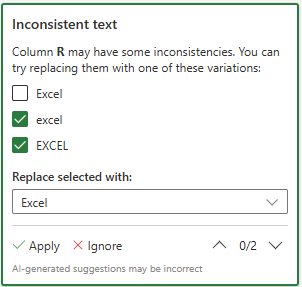
Inconsistent text in cells of the same value
This feature identifies variations across same values that could cause problems. For example, these situations can cause wrong aggregations:
- A column with a mix of uppercase and lowercase text in the cells.
- Cells in a column containing differences in punctuation or diacritics.
The Clean Data feature helps you locate these instances so you can easily correct them.
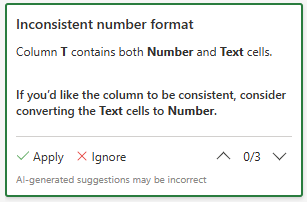
Inconsistent number format in a column
This feature identifies columns with a mix of both Text and Number formatted cells that could result in incorrect calculations. Clean Data locates these inconsistencies and helps you convert the 'Text' formatted cells to a number format.
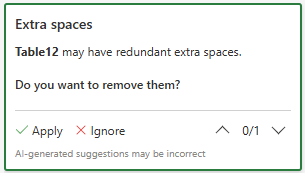
Extra space removal suggestions
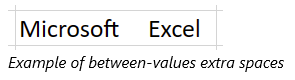
This specific Clean Data feature detects and suggests the removal of unnecessary spaces in the inspected table—such as extra leading spaces, trailing spaces, and between-values spaces.
Practical tips
Here are some helpful pointers for getting the most out of Clean Data:
- Clean Data works best with tabular data of up to 100 columns and 50,000 rows.
- Clean Data works best with data that is formatted as an Excel table. To create an Excel table, go anywhere in your data and then select Home > Styles > Format as Table.
- While not limited to English, Clean Data initially performs best in English.
Functionality and feedback
This article describes the initial release. The team is always improving Clean Data. It might not behave as you anticipate. If you don't get any expected Clean Data suggestions, get non-accurate suggestions, or have any sort of feedback, contact the team by going to File > Feedback or by selecting Tell us what you think about Clean Data at the lower-right of the side pane.