

An append operation creates a new query that contains all rows from a first query followed by all rows from a second query. The append operation requires at least two queries. These queries can also be based on different external data sources.
About append queries
The append operation is based on the names of the column headers in both tables, and not their relative column position. The final table contains all matching columns from all tables appended. If the tables don’t have matching columns, null values are added to the unmatched column. The tables are appended in the order in which you select them, starting with the primary table.
You can perform two types of append operations. With an inline append, you append data to your existing query until you reach a final result. The result is a new step at the end of the current query. With an intermediate append, you create a new query for each append operation.
Append combines rows from multiple tables. To combine tables based on matching column values, use Merge.
Note
Privacy Levels prevent a user from inadvertently combining data from multiple data sources, which might be private or organizational. Depending on the query, a user could inadvertently send data from the private data source to another data source that might be malicious. Power Query analyzes each data source and classifies it into the defined level of privacy: Public, Organizational, and Private. For more information, see Set privacy levels (Power Query).
Append queries
To open a query, locate one previously loaded from the Power Query select Data > Queries & Connections, and then double-click the query. For more information, see Create, load, or edit a query in Excel (Power Query).
Select Home > Append Queries. The default action is to do an inline append. To do an intermediate append, select the arrow next to the command, and then select Append Queries as New.
The Append dialog box appears.
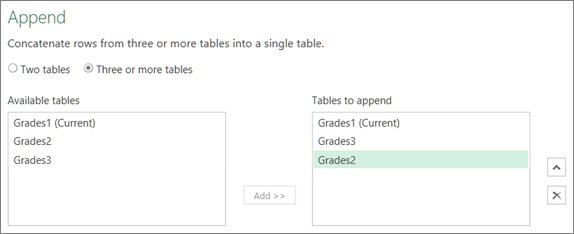
Decide the number of tables you want to append:
- Select Two tables, and then select the second table in the drop-down list box to append.
- Select Three or more tables. From the Available tables box, add the tables you want to append to the Tables to append. Use the arrows on the right of that box to change sequence.
Select OK.
Result
- If you chose to do an inline append in step 2, a new step is added to the current query. You can continue adding steps to the same query to append more queries.
- If you chose to do an intermediate append in step 2, a new query is created. You can continue creating more queries.
See also
Add or change data types (Power Query)
Learn to combine multiple data sources (Power Query)